插槽
本页假设你已经阅读过 组件基础。如果你是组件新手,请先阅读那一节。
插槽内容与出口
我们已经了解到,组件可以接收 props,而 props 可以是任意类型的 JavaScript 值。但模板内容呢?在某些情况下,我们可能希望将一个模板片段传递给子组件,并让子组件在自己的模板中渲染这个片段。
例如,我们可能有一个 <FancyButton> 组件,它支持如下用法:
template
<FancyButton>
  Click me! <!-- 插槽内容 -->
</FancyButton>
<FancyButton> 的模板如下所示:
template
<button class="fancy-btn">
  <slot></slot> <!-- 插槽出口 -->
</button>
<slot> 元素是一个 插槽出口,它表示父组件提供的 插槽内容 应该被渲染到哪里。
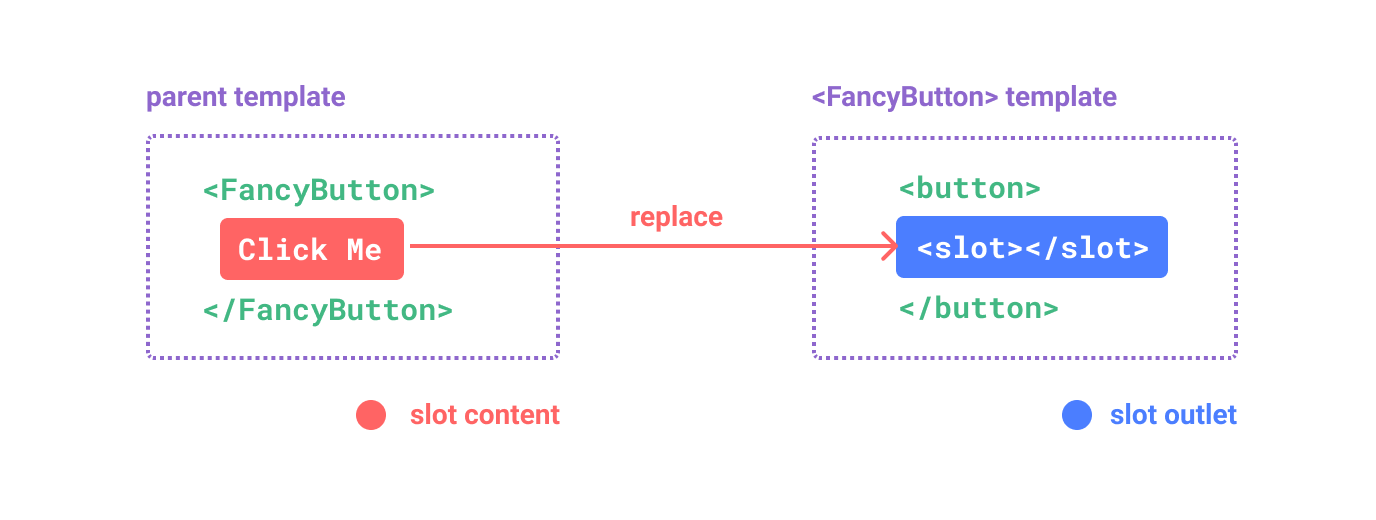
最终渲染出的 DOM:
html
<button class="fancy-btn">Click me!</button>通过插槽,<FancyButton> 负责渲染外层的 <button>(以及它华丽的样式),而内部内容则由父组件提供。
理解插槽的另一种方式,是将它们与 JavaScript 函数进行比较:
js
// 父组件传递插槽内容
FancyButton('Click me!')

// FancyButton 在自己的模板中渲染插槽内容
function FancyButton(slotContent) {
  return `<button class="fancy-btn">
      ${slotContent}
    </button>`
}
插槽内容不只是限于文本。它可以是任何有效的模板内容。例如,我们可以传入多个元素,甚至其他组件:
template
<FancyButton>
  <span style="color:red">点击我!</span>
  <AwesomeIcon name="plus" />
</FancyButton>使用插槽后,我们的 <FancyButton> 更加灵活且可复用。现在我们可以在不同地方使用它,并传入不同的内部内容,但都保持同样华丽的样式。
Vue 组件的插槽机制受到了 原生 Web Components 的 <slot> 元素 的启发,但它还具备一些我们后面会看到的额外能力。
渲染作用域
插槽内容可以访问父组件的数据作用域,因为它是在父组件中定义的。例如:
template
<span>{{ message }}</span>
<FancyButton>{{ message }}</FancyButton>
这里两个 {{ message }} 插值都会渲染出相同的内容。
插槽内容不能访问子组件的数据。Vue 模板中的表达式只能访问其定义所在的作用域,这与 JavaScript 的词法作用域一致。换句话说:
父模板中的表达式只能访问父作用域;子模板中的表达式只能访问子作用域。
备用内容
有些情况下,为插槽指定备用内容(即默认内容)很有用,这些内容只会在没有提供任何内容时才会被渲染。例如,在一个 <SubmitButton> 组件中:
template
<button type="submit">
  <slot></slot>
</button>
如果父组件没有为插槽提供任何内容,我们可能希望在 <button> 内部渲染文本“提交”。要将“提交”设为备用内容,可以把它放在 <slot> 标签之间:
template
<button type="submit">
  <slot>
    提交 <!-- 备用内容 -->
  </slot>
</button>
现在,当我们在父组件中使用 <SubmitButton> 且没有为插槽提供内容时:
template
<SubmitButton />这将渲染备用内容“提交”:
html
<button type="submit">提交</button>但如果我们提供内容:
template
<SubmitButton>保存</SubmitButton>那么渲染的将是提供的内容:
html
<button type="submit">保存</button>具名插槽
有时在单个组件中拥有多个插槽出口会很有用。例如,在 <BaseLayout> 组件中有如下模板:
template
<div class="container">
  <header>
    <!-- 我们希望这里放入 header 内容 -->
  </header>
  <main>
    <!-- 我们希望这里放入 main 内容 -->
  </main>
  <footer>
    <!-- 我们希望这里放入 footer 内容 -->
  </footer>
</div>在这种情况下,<slot> 元素有一个特殊属性 name,可以用来给不同的插槽分配唯一的 ID,这样你就可以决定内容应该被渲染到哪里:
template
<div class="container">
  <header>
    <slot name="header"></slot>
  </header>
  <main>
    <slot></slot>
  </main>
  <footer>
    <slot name="footer"></slot>
  </footer>
</div>
没有 name 的 <slot> 出口会隐式地拥有 "default" 这个名称。
在使用 <BaseLayout> 的父组件中,我们需要一种方式来传递多个插槽片段,每个片段都对应不同的插槽出口。这就是具名插槽的作用。
要传递具名插槽,我们需要使用带有 v-slot 指令的 <template> 元素,然后将插槽名称作为参数传给 v-slot:
template
<BaseLayout>
  <template v-slot:header>
    <!-- header 插槽的内容 -->
  </template>
</BaseLayout>
v-slot 还有一个专用简写 #,因此 <template v-slot:header> 可以简写为 <template #header>。可以把它理解为“将这个模板片段渲染到子组件的 ‘header’ 插槽中”。
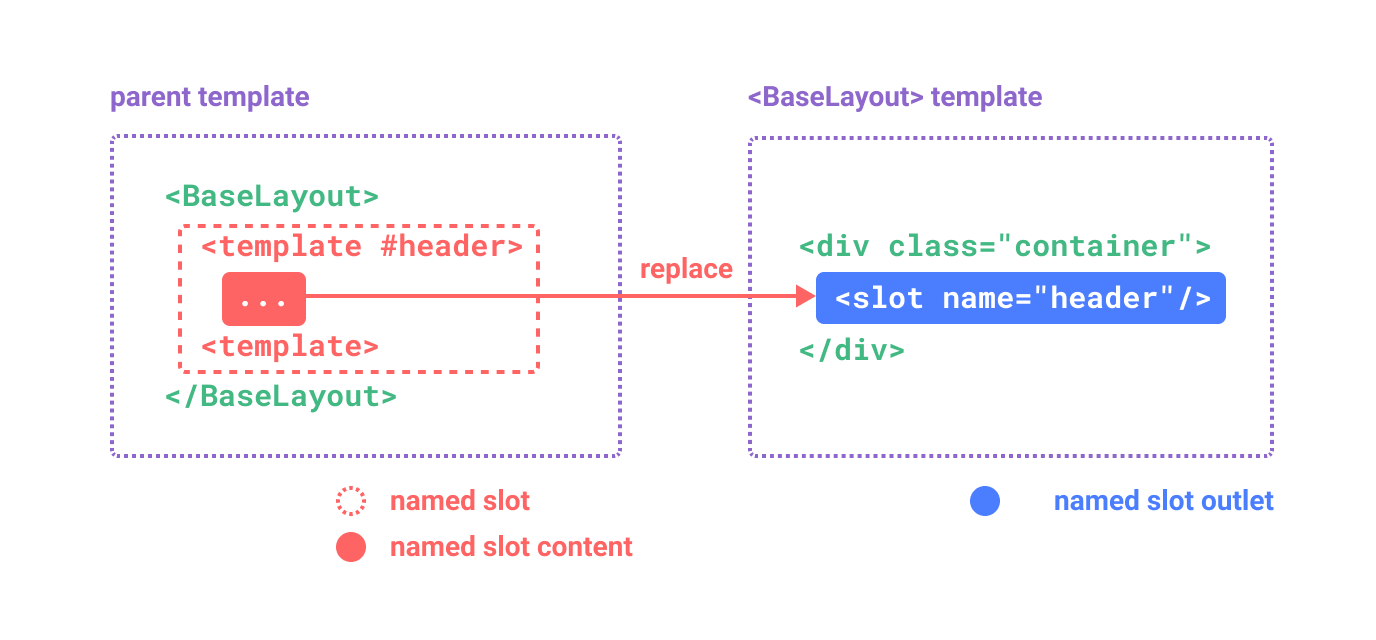
下面是使用简写语法向 <BaseLayout> 传递三个插槽内容的代码:
template
<BaseLayout>
  <template #header>
    <h1>这里可能是一个页面标题</h1>
  </template>

  <template #default>
    <p>主内容的一段文字。</p>
    <p>还有另一段。</p>
  </template>

  <template #footer>
    <p>这里是一些联系信息</p>
  </template>
</BaseLayout>
当一个组件同时接受默认插槽和具名插槽时,所有顶层的非 <template> 节点都会被隐式视为默认插槽的内容。因此,上面的内容也可以写成:
template
<BaseLayout>
  <template #header>
    <h1>这里可能是一个页面标题</h1>
  </template>

  <!-- 隐式默认插槽 -->
  <p>主内容的一段文字。</p>
  <p>还有另一段。</p>

  <template #footer>
    <p>这里是一些联系信息</p>
  </template>
</BaseLayout>现在,<template> 元素中的所有内容都会被传递到对应的插槽中。最终渲染出的 HTML 将会是:
html
<div class="container">
  <header>
    <h1>这里可能是一个页面标题</h1>
  </header>
  <main>
    <p>主内容的一段文字。</p>
    <p>还有另一段。</p>
  </main>
  <footer>
    <p>这里是一些联系信息</p>
  </footer>
</div>同样地,使用 JavaScript 函数类比也有助于更好地理解具名插槽:
js
// 使用不同名称传递多个插槽片段
BaseLayout({
  header: `...`,
  default: `...`,
  footer: `...`
})

// <BaseLayout> 在不同位置渲染它们
function BaseLayout(slots) {
  return `<div class="container">
      <header>${slots.header}</header>
      <main>${slots.default}</main>
      <footer>${slots.footer}</footer>
    </div>`
}
条件插槽
有时候,你希望根据内容是否传入了某个插槽来渲染一些内容。
你可以结合使用 $slots 属性和 v-if 来实现这一点。
在下面的示例中,我们定义了一个 Card 组件,它有三个条件插槽:header、footer 以及 default。 当 header / footer / default 的内容存在时,我们希望用额外的样式包裹它们:
template
<template>
  <div class="card">
    <div v-if="$slots.header" class="card-header">
      <slot name="header" />
    </div>

    <div v-if="$slots.default" class="card-content">
      <slot />
    </div>

    <div v-if="$slots.footer" class="card-footer">
      <slot name="footer" />
    </div>
  </div>
</template>动态插槽名称
动态指令参数 同样适用于 v-slot,这允许定义动态插槽名称:
template
<base-layout>
  <template v-slot:[dynamicSlotName]>
    ...
  </template>

  <!-- 使用简写 -->
  <template #[dynamicSlotName]>
    ...
  </template>
</base-layout>
请注意,该表达式需要遵循动态指令参数的 语法限制。
作用域插槽
正如在 渲染作用域 中所讨论的,插槽内容无法访问子组件中的状态。
不过,在某些情况下,插槽内容同时使用父作用域和子作用域中的数据会很有用。为此,我们需要一种方式,让子组件在渲染插槽时向插槽传递数据。
实际上,我们可以做到这一点——我们可以像向组件传递 props 一样,向插槽出口传递属性。父模板通过 v-slot 接收插槽 props,而子模板则在渲染插槽出口时向其传递 props:
template
<!-- 父模板(用法) -->
<ChildComponent v-slot="receivedProps">
  {{ receivedProps.text }} {{ receivedProps.count }}
</ChildComponent>
template
<!-- 子模板(插槽定义) -->
<!-- 使用 props 进行渲染! -->
<slot
  text="hello"
  :count="1"
/>
使用单个默认插槽和使用具名插槽时,接收插槽 props 的方式略有不同。上面的示例使用单个默认插槽接收 props,方法是直接在 ChildComponent 标签上使用 v-slot。

子组件传给插槽的 props 会作为对应 v-slot 指令的值可用,并且可以在插槽内部通过表达式访问。
你可以把作用域插槽看作传入子组件的一个函数。然后子组件再调用它,并把 props 作为参数传入:
js
ChildComponent({
  // 传递默认插槽,但以函数的形式
  default: (receivedProps) => {
    return `${receivedProps.text} ${receivedProps.count}`
  }
})

function ChildComponent(slots) {
  // 使用 props 调用插槽函数!
  return slots.default({ text: 'hello', count: 1 })
}
实际上,这与作用域插槽的编译方式非常接近,也与你在手写 渲染函数 中使用作用域插槽的方式一致。
注意,v-slot="receivedProps" 与插槽函数的签名相匹配。就像函数参数一样,我们可以在 v-slot 中使用解构:
template
<ChildComponent v-slot="{ text, count }">
  {{ text }} {{ count }}
</ChildComponent>
具名作用域插槽
具名作用域插槽的工作方式类似——插槽 props 可以作为 v-slot 指令的值进行访问:v-slot:name="receivedProps"。使用简写时如下所示:
template
<MyComponent>
  <template #header="headerProps">
    {{ headerProps }}
  </template>

  <template #default="defaultProps">
    {{ defaultProps }}
  </template>

  <template #footer="footerProps">
    {{ footerProps }}
  </template>
</MyComponent>
向具名插槽传递 props:
template
<slot name="header" message="hello" />请注意,插槽的 name 不会包含在 props 中,因为它是保留属性——因此得到的 headerProps 会是 { message: 'hello' }。
如果你把具名插槽和默认作用域插槽混用,就需要为默认插槽显式使用 <template> 标签。尝试直接把 v-slot 指令放在组件上会导致编译错误。这样做是为了避免默认插槽 props 的作用域产生任何歧义。例如:
template
<!-- <MyComponent> 模板 -->
<div>
  <slot message="hello" />
  <slot name="footer" />
</div>
template
<!-- 此模板不会编译 -->
<MyComponent v-slot="{ message }">
  <p>{{ message }}</p>
  <template #footer>
    <!-- message 属于默认插槽,在这里不可用 -->
    <p>{{ message }}</p>
  </template>
</MyComponent>
为默认插槽使用显式的 <template> 标签,有助于清楚地表明 message prop 在其他插槽内部不可用:
template
<MyComponent>
  <!-- 使用显式默认插槽 -->
  <template #default="{ message }">
    <p>{{ message }}</p>
  </template>

  <template #footer>
    <p>这里有一些联系信息</p>
  </template>
</MyComponent>
精彩列表示例
你可能会想,作用域插槽的一个好用例会是什么。这里有一个例子:设想一个 <FancyList> 组件,它会渲染一个项目列表——它可以封装远程数据加载、使用数据展示列表,甚至分页或无限滚动等高级功能。不过,我们希望它在每个项目的外观上保持灵活,并将每个项目的样式交给使用它的父组件来决定。因此,期望的用法可能如下:
template
<FancyList :api-url="url" :per-page="10">
  <template #item="{ body, username, likes }">
    <div class="item">
      <p>{{ body }}</p>
      <p>作者:{{ username }} | {{ likes }} 个赞</p>
    </div>
  </template>
</FancyList>
在 <FancyList> 内部,我们可以用不同的项目数据多次渲染同一个 <slot>(注意这里我们使用 v-bind 把一个对象作为插槽 props 传入):
template
<ul>
  <li v-for="item in items">
    <slot name="item" v-bind="item" />
  </li>
</ul>无渲染组件
上面讨论的 <FancyList> 用例同时封装了可复用的逻辑(数据获取、分页等)和视觉输出,同时又通过作用域插槽将部分视觉输出委托给消费组件。
如果我们把这个概念再向前推进一点,就可以得到一种只封装逻辑、而自身不渲染任何内容的组件——视觉输出会通过作用域插槽完全委托给消费组件。我们把这种类型的组件称为 无渲染组件。
一个无渲染组件的例子,是封装当前鼠标位置追踪逻辑的组件:
template
<MouseTracker v-slot="{ x, y }">
  鼠标位置:{{ x }}, {{ y }}
</MouseTracker>虽然这是一种有趣的模式,但无渲染组件所能实现的大多数内容,都可以通过 Composition API 更高效地实现,而不会产生额外的组件嵌套开销。后面我们会看到如何把同样的鼠标追踪功能实现为一个 可组合函数。
不过,在需要同时封装逻辑并且组合视觉输出的场景中,作用域插槽仍然很有用,例如上面的 <FancyList> 示例。